Audio settings: output, bit-perfect and DSD
This is where RustMusic makes the difference: choose your DAC, send it your files without any change and play DSD natively. All these settings live in Settings → Audio.
Up to date for version 0.4.3
Documentation
Choosing the output
The “Output” section lists all your devices: sound card, HDMI output, headset, USB DAC. For each one, RustMusic shows the sample rates and bit depth it accepts, and a quality badge (CD quality, Hi-Res, Ultra Hi-Res). Choose “Use as output” on the one you listen to; “Refresh” updates the list after plugging in a device.
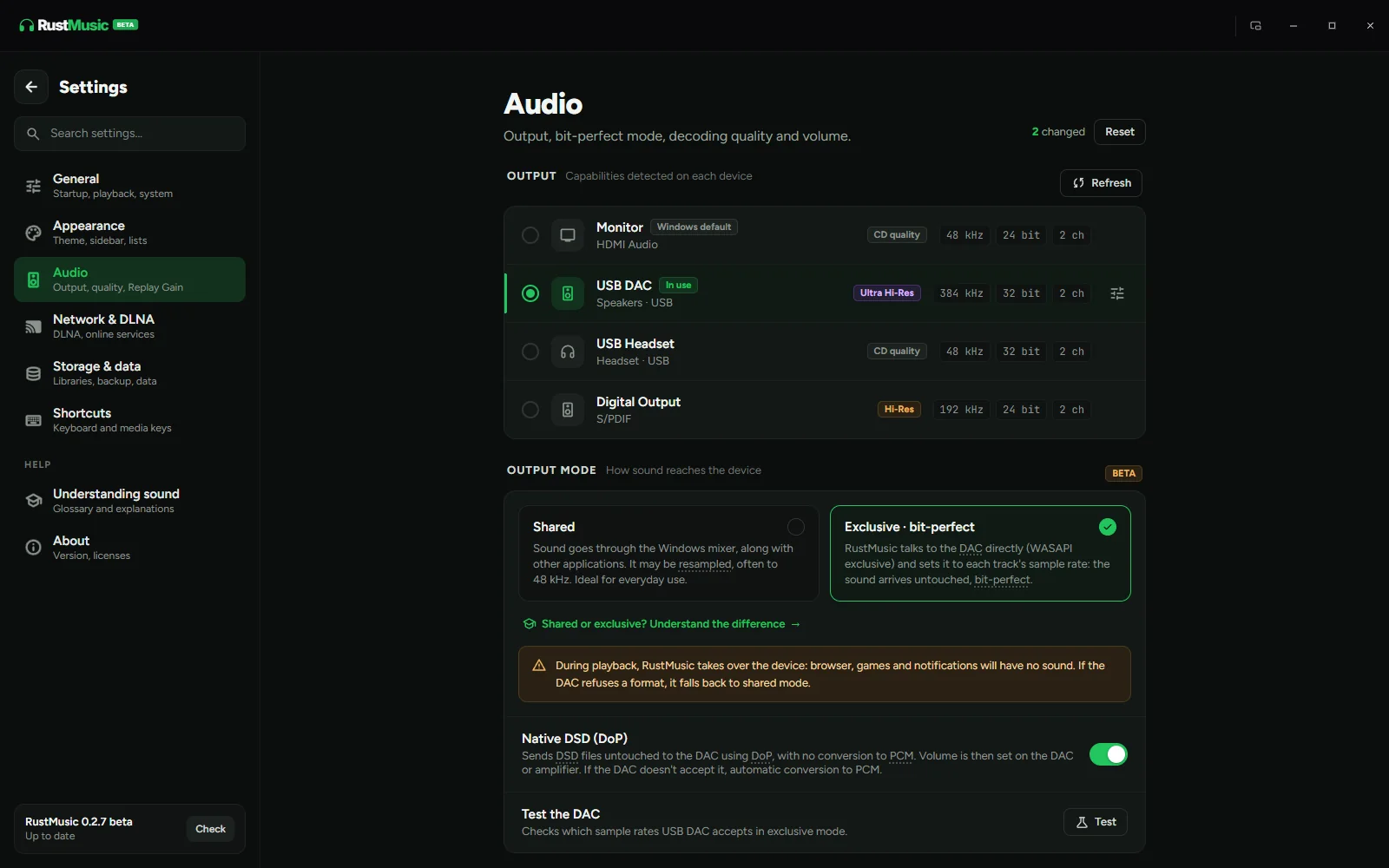
Changing the output, the mode (exclusive or shared), native DSD or the quality profile takes effect immediately: the current track picks up at the same spot with the new configuration, without restarting the app. While paused, the change applies when playback resumes.
If the output drops out mid-playback (flaky USB cable, DAC reset, format changed in Windows), RustMusic reopens it and the track resumes where it cut off. If it doesn’t come back within 5 seconds, playback switches to the system output, with the message “Audio output lost”. The next track tries the chosen output again.
Shared or exclusive mode
| Shared | Exclusive | |
|---|---|---|
| Other computer sounds | Mixed with the music | Muted on this output |
| Sample rate sent | The system’s | The file’s own if supported |
| Resampling | Possible | None if the format is supported |
Exclusive mode reserves the output: WASAPI on Windows, direct ALSA access on Linux, CoreAudio “hog mode” on macOS. For bit-perfect PCM playback, use a lossless source, a DAC that supports its sample rate and channels, volume at 100% and ReplayGain off or neutral. Set the level on your amplifier. Exclusive mode alone does not guarantee an unchanged signal.
During exclusive playback, other apps (browser, notifications, games) have no sound on that output. If your DAC rejects a format, RustMusic falls back to shared mode automatically rather than staying silent.
In shared mode too, the output stays open from one track to the next: only the first track waits for the DAC to open. It closes after 30 seconds without playback, or as soon as exclusive or DSD playback needs the DAC.
Native DSD (DoP)
Turn on “Native DSD (DoP)” to send your DSF and DFF files untouched to a compatible DAC, which decodes them natively and shows “DSD”. This option requires exclusive mode. Software volume is then disabled: set the level on your amplifier or DAC.
If your DAC does not accept DoP, DSD is converted to PCM so it still plays. Since version 0.2.8, DoP plays gaplessly on Windows, macOS and Linux when the format remains compatible with the output. Version 0.2.9 also fixes transitions when DSD is converted to PCM.
Test the DAC (Windows)
“Test the DAC” checks which sample rates your output really accepts in exclusive mode, instead of trusting what Windows reports. Handy to know whether your DAC will play your 192 kHz or DSD files natively.
Decoding quality and ReplayGain
- “Decoding quality”: Auto picks based on your machine. Maximum, Balanced, Compatibility and Degraded gradually reduce processing for modest computers.
- “Replay Gain” evens out volume between tracks (Per track) or between albums (Per album), with an adjustable pre-amp. Changing the mode or pre-amp takes effect immediately on the current track. Turn it off for bit-perfect playback.
- Gapless playback and playback resume are set in Settings → General. Transitions stay gapless even when the output resamples (a 44.1 kHz file on a 48 kHz output, for example).
Checking the audio chain
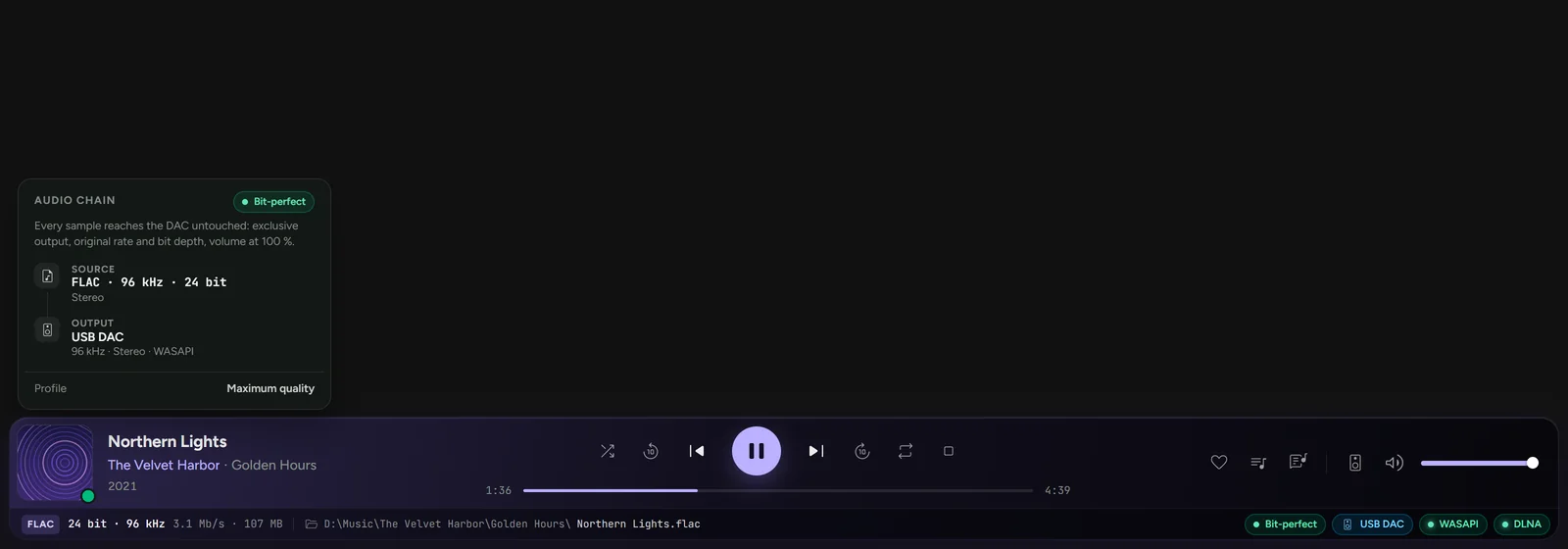
The player’s status line shows the real format and audio-chain badges. “Bit-perfect” means a lossless source sent unchanged, with matching sample rate and channels and neutral ReplayGain. “Exclusive” means a reserved output whose signal may still be altered. When a mode fails, the audio chain, badge and Settings → Audio explain why. Hover over the chain for details.
Further reading
Question not answered?
Open an issue on GitHub: every report helps improve RustMusic and this documentation.