Network: players, AirPlay and DLNA
RustMusic sends music to the network players and AirPlay devices in your home, and shares your library with them through its DLNA server. Everything is set up in Settings → Network & DLNA.
Up to date for version 0.4.3
Documentation
Three ways to listen over the network
| Feature | Who plays the file | Quality | Default |
|---|---|---|---|
| Network player (UPnP/DLNA) | The device, from the original file | The file’s own, if the device supports it | Beta, off |
| AirPlay (v1) | RustMusic, which sends the sound to the device | CD quality (16-bit / 44.1 kHz) | Beta, off |
| DLNA server | The device, which browses your library itself | The file’s own | To turn on |
With a network player or an AirPlay device, you control everything from RustMusic: queue, pause, volume. With the DLNA server, the amplifier, the TV or their app picks and plays the tracks.
Playing on a network player (UPnP/DLNA)
Beta feature, off by default: while it is off, RustMusic doesn’t look for any device on the network.
- 1
Turn on network playback
In Settings → Network & DLNA, “Network players” group, turn on “Play on a network player”.
- 2
Open the output menu
In the player bar, the “Audio output” menu now has a “Network players” section. The search starts the first time you open it; “Search” runs it again.
- 3
Pick the device
WiiM, amplifier or network player (Onkyo, Denon, Marantz, Yamaha…): from now on, it does the playing.
The file is sent as it is, with no conversion: the device decodes it, in hi-res if it can. The queue, seeking, pause, volume and gapless playback work just as they do locally, and the title, artist, album and cover show up on the device.
- Switching output mid-track resumes the track at the same spot.
- The chosen player is found again next time you launch the app.
- A format the device says it can’t play is flagged right away instead of staying silent. That is often the case with DSD.
- During playback, the player’s status line shows the device name instead of the audio chain.
Exclusive mode and native DSD (DoP) in Settings → Audio apply to the computer’s outputs. On a network player, the device decodes the file.
Sonos speakers
- Sonos speakers appear under “Network players” by their room name.
- In a group, playback is handed over automatically to the speaker that leads the group.
- Sonos speakers play up to 24-bit / 48 kHz.
- They leave a short gap between tracks: that is expected, not a fault.
Playing on an AirPlay device
AirPlay 1 only, in beta and off by default. Turn on “Play on an AirPlay device (v1)” in Settings → Network & DLNA, “Network players” group.
AirPlay devices (Onkyo, Denon, Marantz… amplifiers, AirPort Express, Apple TV, Shairport Sync) appear in the “Network players” section of the “Audio output” menu, with their icon. Here RustMusic does the playing and sends the sound to the device in CD quality (16-bit / 44.1 kHz, ALAC): the queue, gapless playback, Replay Gain, seeking and pause stay RustMusic’s own. The connection stays open from one track to the next.
- The device plays about 2 seconds after the sound is sent. RustMusic allows for it: the position shown follows what you hear, a pause is heard at once and playback resumes from where you stopped hearing it.
- RustMusic’s volume acts on the sound it sends, never on the amplifier’s volume.
- The title, artist, album, cover and progress show up on the device, depending on what it can display, as the track is heard.
A password-protected device, or one that only accepts AirPlay 2, is not offered. DSD is not supported over AirPlay yet.
The “Network” badge
As soon as a network feature is on, a “Network” badge appears in the player bar. Its icons show what is running (UPnP/DLNA players, AirPlay, DLNA sharing), and hovering shows the details.
A click opens a menu in two parts, “Send music to” (“UPnP/DLNA players”, “AirPlay (v1)”) and “Share the library” (“DLNA server”). Each line is turned on or off in one move and shows its status: “Off”, “Ready: pick one in Audio output”, “Playing on TX-RZ900” or “Online · 192.168.1.24:8200”. “Network settings” opens the settings.
Sharing your library (DLNA server)
- 1
Open Settings → Network & DLNA
In the “DLNA server” group, turn on “Share on the network”.
- 2
Name the server if you like
“Server name” is the name shown on your devices (“RustMusic Media Server” by default). The “HTTP port” is 8200 by default.
- 3
Allow RustMusic through the firewall
On Windows, allow access for private networks if asked.
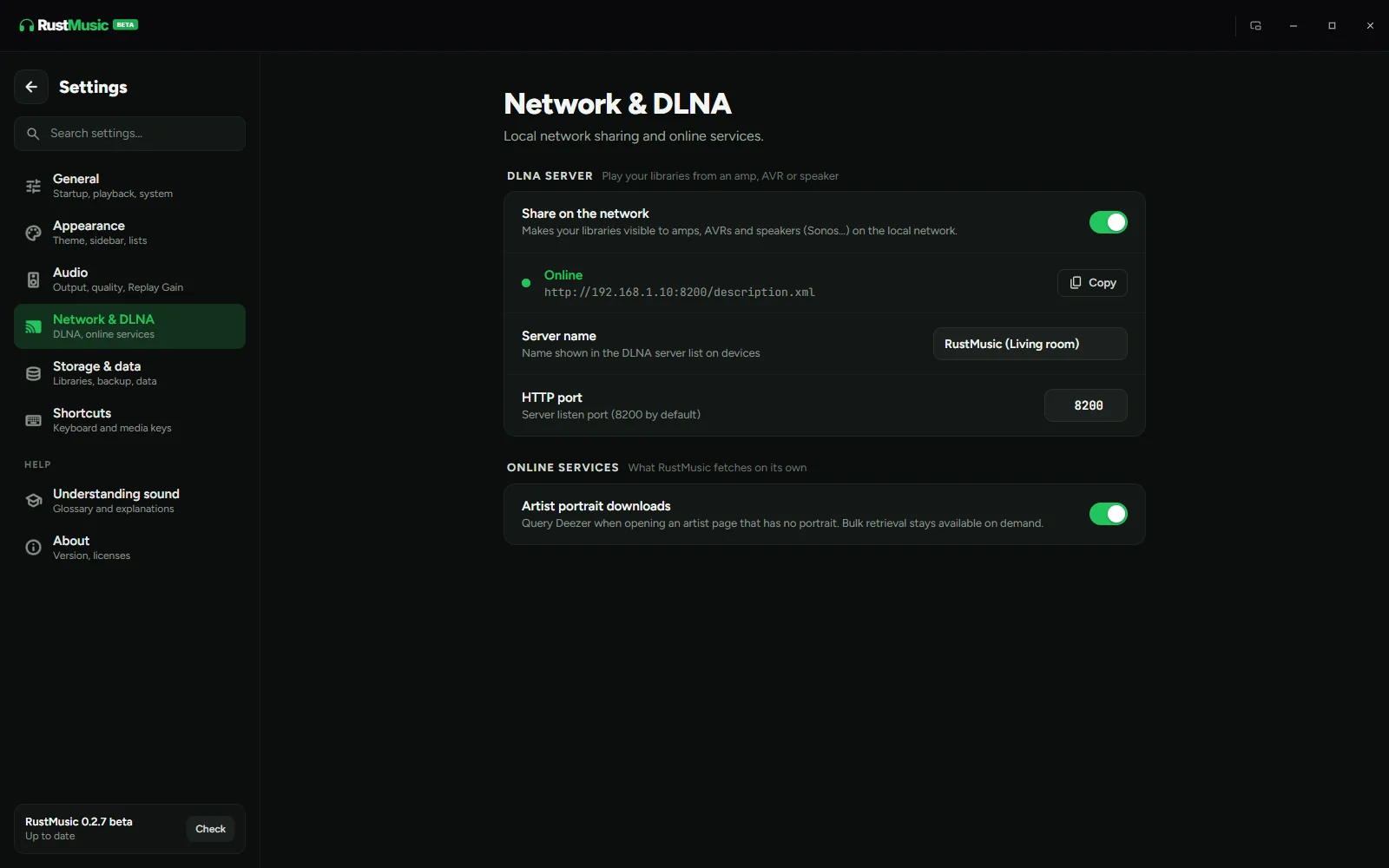
Once the server is “Online”, the settings show its address, which “Copy” puts on the clipboard. The server starts again automatically when RustMusic launches if it was turned on, and stops when the app is closed.
Listening from a device
On your amplifier, TV or their app, open the network source (“Server”, “Media Server”, “Network library”…). RustMusic shows up on its own. Browse by artists, albums or folders, with cover art.
Pause and seeking work from the amplifier or its app. Before 0.3.0, the server didn’t say it accepted them, and some devices (Onkyo in particular) refused to pause.
Files are sent as they are, with no conversion: the device has to support the format (FLAC, hi-res, DSD…).
VPN and macOS
- VPN: with a VPN on (WireGuard, OpenVPN…), the DLNA server only announces itself on the local network adapters, never inside the tunnel, and the address shown is the local one. Before 0.3.0, the amplifiers in the living room could show “No server”.
- The search for network players and AirPlay devices starts from every network adapter on the computer: a VPN or a virtual adapter no longer hides the devices in the living room.
- macOS: RustMusic asks for permission to access the local network. Without it, macOS 15 silently blocks the device search and the DLNA server. If you declined, turn RustMusic back on in System Settings → Privacy & Security → Local Network.
Going further
For choosing hardware, supported formats and network troubleshooting, see the full guide “Play your FLAC files on a network amplifier over DLNA” in the Guides section. To control the amplifier itself (volume, sources, listening modes), see the “Amplifier remote” page.
Further reading
Question not answered?
Open an issue on GitHub: every report helps improve RustMusic and this documentation.