Podcasts
RustMusic follows your podcasts: search Apple Podcasts or paste an RSS feed address, browse each country’s top podcasts, listen while the episode downloads and resume where you left off.
Up to date for version 0.4.3
Documentation
Turning podcasts on
Podcasts are off by default. Turn on “Enable podcasts” in Settings → Online listening: a Podcasts page appears, with an entry in the sidebar’s “Online listening” section.
When they are off, no feed is contacted and your subscriptions are kept. When they are on, searches are sent to the Apple Podcasts directory; feeds and episodes are downloaded directly from each publisher, with no middleman. While RustMusic is open, your subscriptions are checked every 6 hours by default; “Check for new episodes” sets how often.
Finding a show
- Search the Apple Podcasts directory in the “Search for a podcast, or paste an RSS feed address” field.
- An RSS feed address pasted as is: the button becomes “Add this feed”.
- “Top podcasts”: the Apple Podcasts chart for the chosen country, by category (News, Society, History, True crime, Comedy, Science…), sortable by chart position, name or latest episode.
Clicking a show opens its page, with its episodes and playback: you subscribe along the way. A right-click (or the “…” menu) offers a “Preview” without subscribing: the show’s details and latest episodes.
The Podcasts page
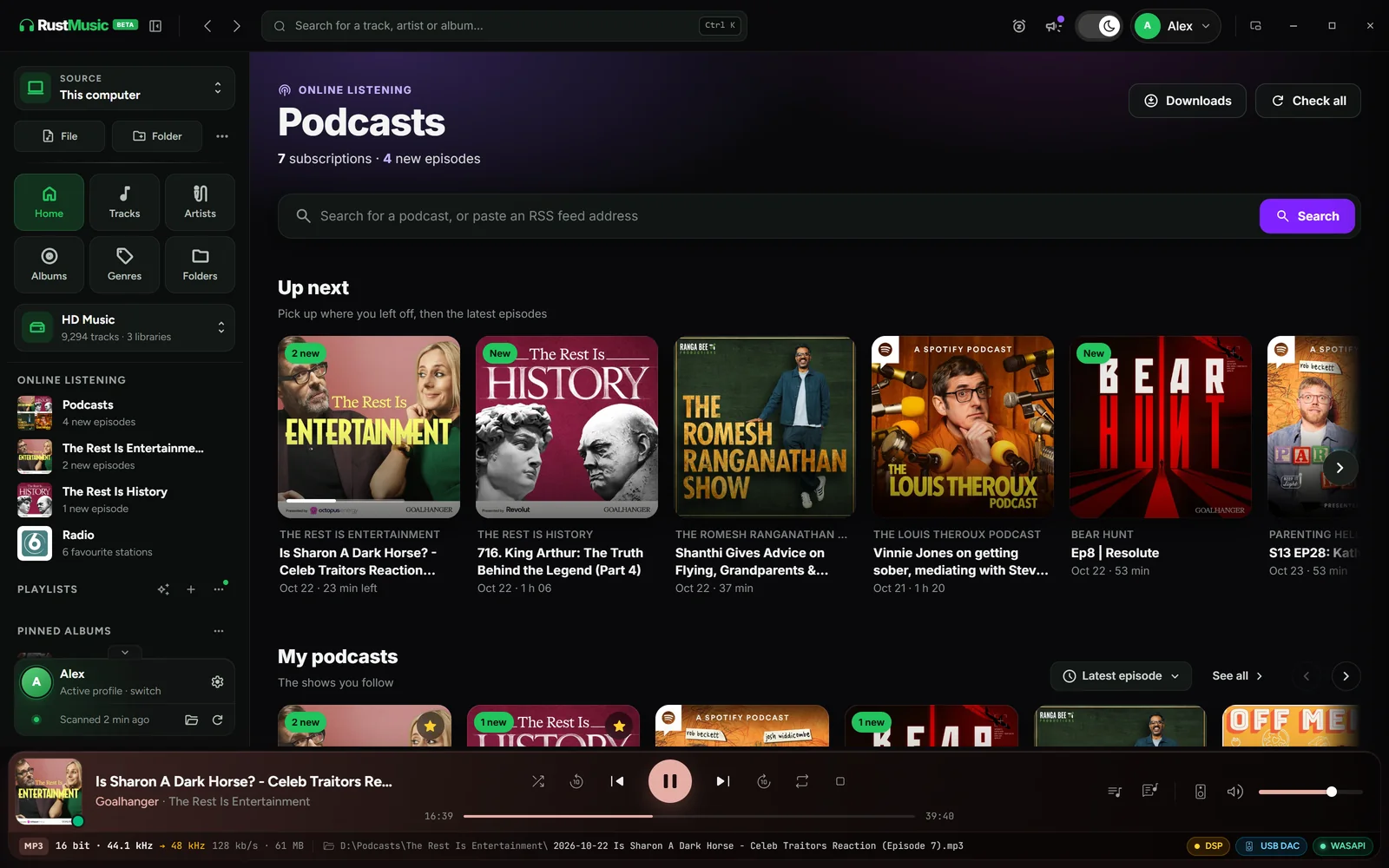
- “Up next”: one episode per show, the one you started or the most recent, with its progress. A card’s “…” menu (or a right-click) offers “Remove from ‘Up next’”, “Mark as played” and “Open”; a removed show comes back with its next episode. “Clear the list”, in the section’s “…” menu, removes them all.
- “My podcasts”: your subscriptions, sortable by latest episode, name, date subscribed or new episodes. “See all” opens the full list.
- “Downloads” and “Check all”, at the top right. New episodes are also checked for in the background.
A show’s page
- Episodes, grouped by month, “Newest first” or “Oldest first”, with the “Unplayed” filter.
- The “Continue listening” card for the episode you started, and “Mark all as played”.
- The “Subscribed” menu: “Check for new episodes”, “Download new episodes” (automatic download for this show) and “Unsubscribe”.
- The star pins the show in the sidebar, under “Podcasts”, and at the top of “My podcasts”.
An episode’s “…” menu offers “Play next”, “Add to queue”, “Mark as played” and download.
Listening, resuming and the episode queue
By default, playback is “Instant”: the episode starts within a few seconds, while it downloads, and jumping far ahead doesn’t wait for the download to finish. With “Deferred”, the episode is fully downloaded first, which helps on an unstable connection. To a UPnP network player, the episode is always fully downloaded first.
- An episode resumes where you left it, and is marked as played at the end.
- The unplayed episodes that follow play next. Episodes have their own queue, separate from the music.
- Episodes don’t go into “Recently played” and have no favorite button.
Playback speed
During an episode, the speed button appears in the player, on the right (it shows the current speed, for example “1.25×”). Presets go from 0.75× to 2×, and the “Slower” and “Faster” buttons go from 0.5× to 3× in steps of 0.05. Voices keep their pitch: no “chipmunk” effect. The time left and the time saved are shown below the controls.
- The speed you choose is remembered for the show.
- For shows whose speed you haven’t picked yet, Settings → Online listening → “Default playback speed”.
- Episodes always go through the shared output, even if exclusive mode is on for music.
- To a UPnP network player, the episode plays at normal speed.
Chapters
When the show provides chapters, in its feed or in the MP3 file, they appear as markers on the progress bar, and the current chapter is shown under the title. The player’s “Chapters” button opens the list: a click jumps to a chapter, “Previous chapter” and “Next chapter” move from one to the next, and “Open the chapter link” opens the link when there is one.
Downloads
The Downloads page sums up the episodes kept on the computer: count, space used, episodes already played and the space that can be freed, and the breakdown by show. From there you delete an episode, a show, “Delete played” or “Delete all”. Files have a readable name, for example “Show/2026-10-21 Title.mp3”.
In Settings → Online listening, “Played episodes” sets what happens to them: keep them, or delete them right away, after 24 h (the default), 7 days or 30 days.
“Check for new episodes” sets the background check: never, every hour, every 6 hours (the default) or once a day. “Clear listening history” marks every episode as unplayed, with no resume position; subscriptions and downloads stay.
Import and export (OPML)
To bring your subscriptions over from another podcast app, or take them there: Settings → Online listening → “Subscriptions (OPML)”, “Import” and “Export” buttons. Exporting creates the rustmusic-podcasts.opml file.
Further reading
Question not answered?
Open an issue on GitHub: every report helps improve RustMusic and this documentation.