Browsing your library
Albums, artists, genres, folders or tracks: RustMusic lets you browse your collection the way you like, with filters, instant search and detailed pages.
Up to date for version 0.4.3
Documentation
Library views
The Tracks, Artists, Albums, Genres, Years, Folders, Mixes and Playlists tabs show your collection from different angles, with search, filters and sorting. Years groups music by decade and year; Mixes brings together daily mixes, genre and decade mixes, and your own presets. You can show or hide Years, Mixes and Playlists in Settings → Appearance.
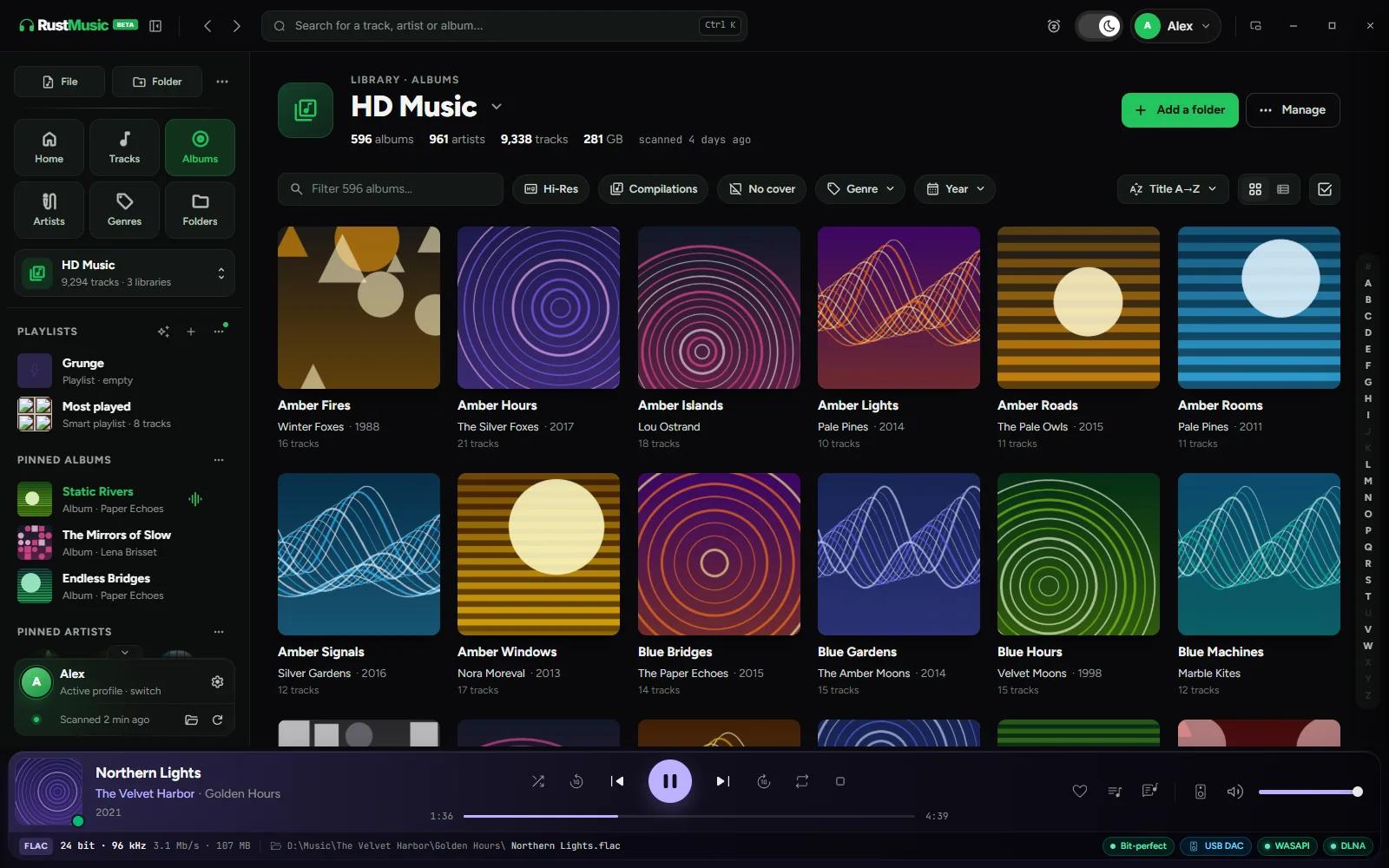
When sorting alphabetically, a column of letters appears on the side: click a letter to jump straight to it, even in a library of several thousand tracks.
The Folders view shows what each folder contains: the covers of its albums (a mosaic if it holds several), its number of tracks and its best quality, for example “FLAC 24/96” or “DSD128”. Files show their title, artist and duration, and play from a button on hover; “Play folder” plays the whole folder. The “Covers” option in the toolbar replaces the covers with artwork tinted by quality. The breadcrumb at the top takes you back up to any level in one click.
A genre page is explored like a year page: an Albums / Tracks / Artists switch, albums sorted by year, title or artist, and tracks sorted by title, artist, year or date added. Genres are grouped regardless of upper and lower case.
In the Artists tab, the switch at the top toggles between “Artists” and “Composers” (the composer tag of your files), and your choice is remembered. Lists like “Hans Zimmer, James Newton Howard” are split, and credits like “Various Composers” are left out.
The “Select” button lets you pick several items to play them, add them to the queue or to a playlist. You’ll find it in the library views, on artist, genre and year pages, on a playlist and on the Playlists page.
Album, artist and composer pages
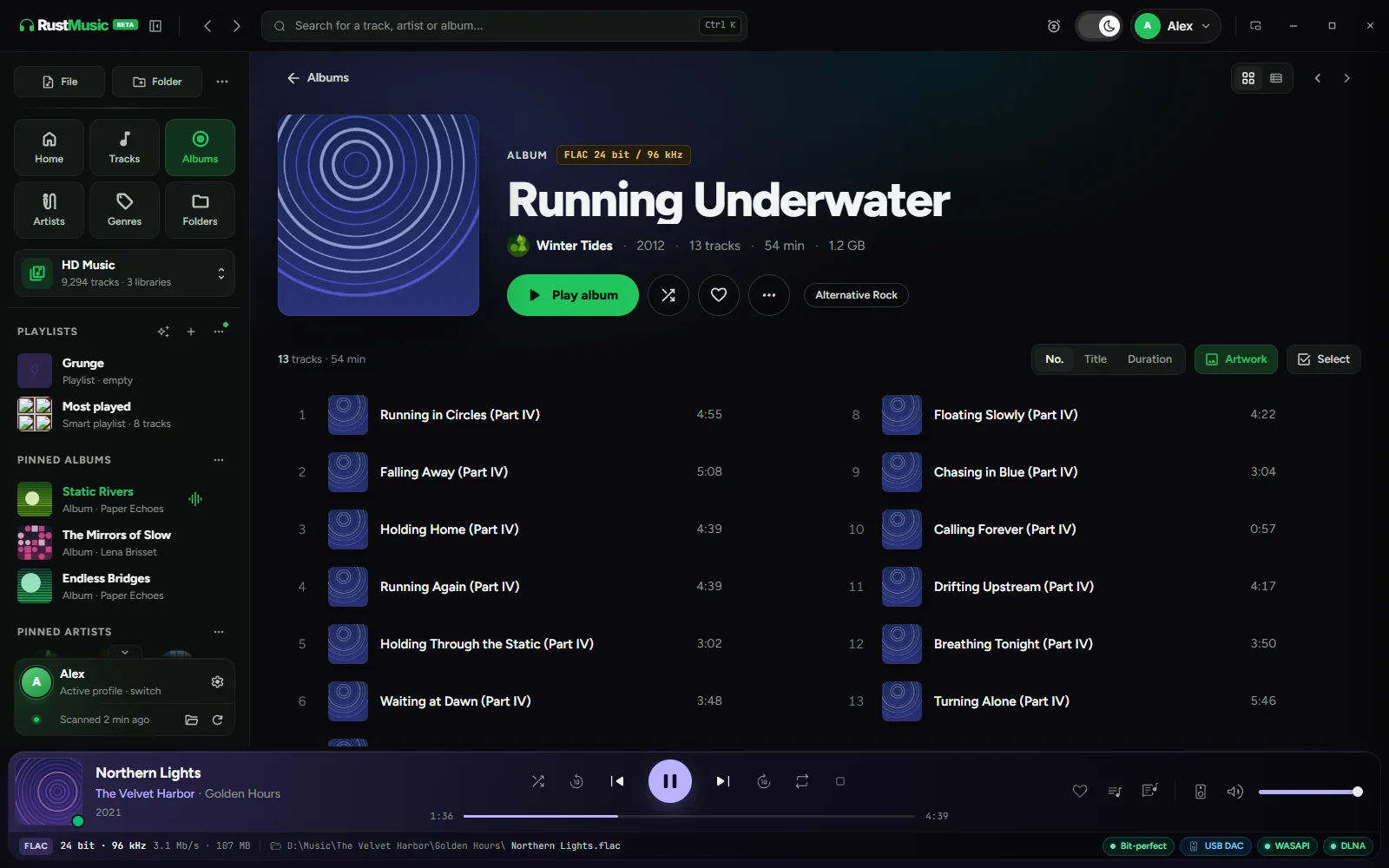
An album page shows the best available quality, tracks grouped by disc, the label and release date read from the tags, plus the artist’s other albums and similar albums.
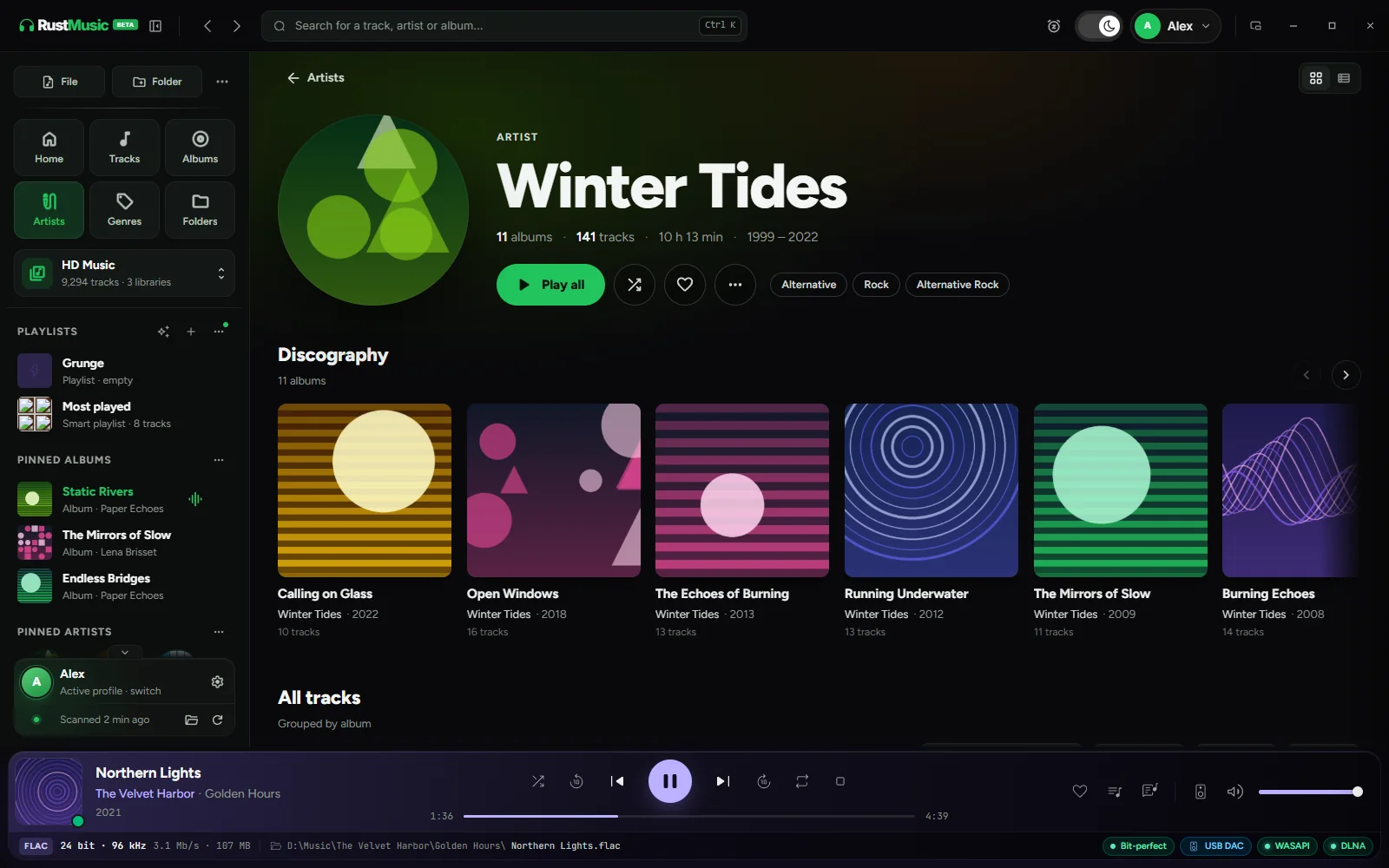
An artist page gathers their portrait, discography, all their tracks and the “Appears on” section for records they only guest on.
A composer page shows their albums, tracks and performers, most present first; its “…” menu plays, shuffles, queues or adds to a playlist. You get there from the Composers view, a track’s page, the Composer column and search. Its photo is that of the artist with the same name, otherwise a Deezer portrait, otherwise two colored initials.
Search, favorites and pins
- Search: Ctrl K (⌘ K on Mac) from anywhere, then type a track, artist or album. The results page shows the top result, tracks with their quality and duration, albums, artists and composers, with filters by type and “Play all”. It only searches the active profile’s libraries.
- Favorites: the heart adds a track to “Liked tracks”, in the sidebar.
- Pins: right-click an album or artist, then “Pin to sidebar” to keep it one click away.
- “Recently played” brings back what you listened to lately. This history and the resume positions belong to each profile.
- Sidebar: the Playlists “…” menu offers “Arrange the sidebar”. The Playlists, Online listening and Pinned sections, pinned playlists, “Liked tracks” and “Recently played” move by their handle or with the arrows; the order is remembered.
Multiple artists
A name like “Chris Brown/Nicki Minaj” or “Billie Eilish & Khalid” often brings two artists together, but “AC/DC” and “Simon & Garfunkel” are bands. RustMusic checks each doubtful name (comma, slash, “&”, “x”…) only once: first the file’s ARTISTS tag, otherwise MusicBrainz, which only receives artist names. Without a sure answer, nothing changes and the name is left for you to decide.
- Start: Settings → Storage & data → “Check multiple artists”, or an artist’s “…” menu → “Is this several artists?”.
- The window follows the check live and can let it “Keep going in the background”. It then becomes the summary: “Split”, each of which can be undone, and “Your call”, where you choose “Split” or “One artist”.
- “Check after each scan” handles new names automatically; “Review corrections” reopens the last summary.
- The ARTISTS tag (written by Picard or Mp3tag) is read during the scan: the exact list of a track’s artists is then used as is.
Your files are never modified: only the links between tracks and artists change in RustMusic.
Adding files on the fly
- Drag audio files onto a library view: “Drop your audio files here” appears and they are added.
- “Add files” lets you pick files to import into the library.
- The “File” and “Folder” buttons play music without importing it. They are hidden by default: turn them on in Settings → Appearance.
Queue, lyrics and mini player
Clicking a track starts playback and puts the list you clicked from into the queue: the music carries on with what comes next. The player’s “Queue” button shows the queue and lets you reorder it.
The “Lyrics” button shows the lyrics, synced when available. RustMusic uses a .lrc file next to the track if there is one, otherwise it looks them up on the open LRCLIB service.
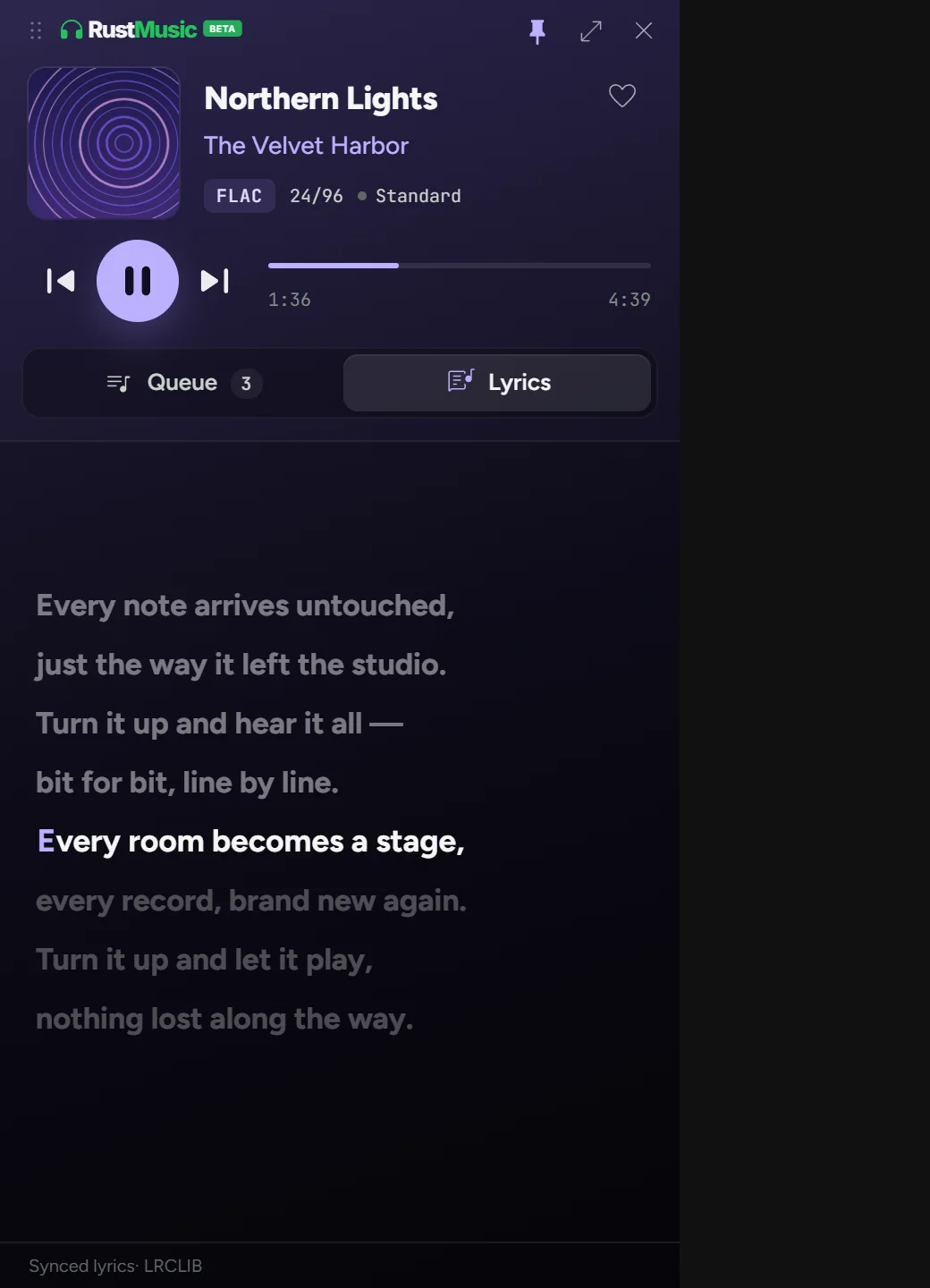
“Mini-player mode”, in the title bar (or Ctrl + Shift + M, ⌘ + ⇧ + M on Mac), shrinks RustMusic to a small player that can stay on top of other windows. Its volume button, at the end of the controls, opens mute and the slider; scrolling over that button also adjusts the volume. The bubble opens vertically or horizontally, as set in Settings → Appearance → Mini player.
From the mini player, the micro player shrinks the window to a square of cover art. Hovering over it reveals previous, play, next, the timeline, volume and the way back to the mini player. The corner handle enlarges the cover up to three times; the size is remembered, and so is the position on Windows and macOS.
The “Sleep timer” stops the music after a chosen time or at the end of the track, and the “Statistics” page, in the profile menu, sums up your listening.
Further reading
Question not answered?
Open an issue on GitHub: every report helps improve RustMusic and this documentation.