Tags and covers
RustMusic reads your tags, but it can also fix them: one track, a whole album or a selection, with help from MusicBrainz and Deezer for metadata and covers.
Up to date for version 0.4.3
Documentation
Editing a track’s tags
Right-click a track, then “Edit tags”: title, artist, album, album artist, year, genre, track and disc numbers, composer and comment.
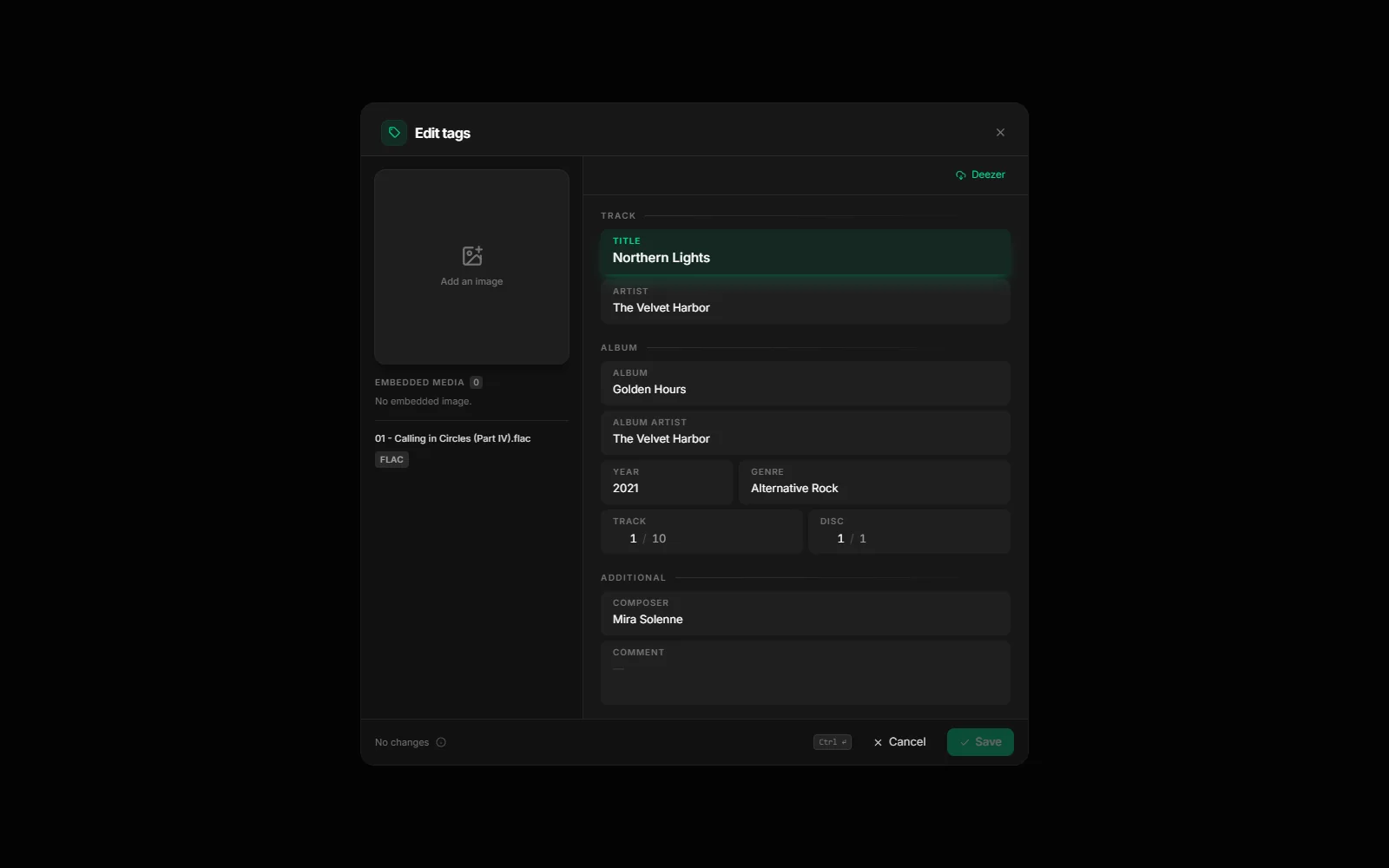
The editor’s “Online” button opens “Fetch online”: search for the track on Deezer or MusicBrainz (“Source” menu), compare its values with yours, tick the ones to keep and click “Apply”. No account is needed.
Tags are written to MP3, FLAC, DSF, DFF and MP4 files (.m4a, .m4b, in AAC as well as ALAC). The blocks you don’t edit are copied over untouched, the audio is never rewritten, and writing is safe, including on a NAS. WAV, AIFF, Ogg and Opus remain read-only.
The tag workshop
The workshop fixes several tracks at once. To open it, right-click an album and choose “Edit tags” (formerly “Fix tags”), or select tracks and click “Workshop” in the selection bar. The selection bar’s “Tags” button is still there to quickly change a field shared by the selection.
The workshop is a single table, with an edit panel on the right that folds away in one click (“Edit panel” button). The header shows the album, the number of pending changes with “Revert all”, “Undo” (Ctrl+Z, with the number of steps) and “Write N files” (Ctrl+S). Nothing is written to your files until you click “Write”.
| Menu | Tools |
|---|---|
| Tags | Complete online, Clean, Number 1 to N, Cover |
| Files | Rename files, Batch history |
Each tool shows a line saying what it does. The “Tags” tools apply to the selected tracks. “Cover” puts an image on the selection and keeps the other images in each file; “Batch history” lets you review or undo past writes and renames.
Items to check
The “items to check” badge above the table lists what is missing: “Missing title, artist or album”, “Missing genre”, “Empty album artist”, or a “feat.” in the artist. Each item is fixed with one button (“Complete”, “Fill” or “Clean”), and “Show only these…” filters the table down to the tracks concerned. When everything is in order, the badge reads “Consistent tags”.
Editing in the table
- Double-click a cell or press F2 to edit it. Enter confirms and moves down to the next row, Tab moves to the next cell (Shift to go back), Esc cancels.
- Click to select, with Shift and Ctrl (⌘ on Mac) to extend the selection; Ctrl+A selects everything.
- Each column has its own menu: copy the value to the selection, “Title Case”, clear, “Hide column”.
- “Columns” picks the columns shown, and your choice is remembered. Album artist is hidden by default.
The edit panel
The panel holds the track, album and credits fields (composer, comment). A value you type applies to every selected track. A field whose values differ says so and keeps them as they are until you type something in it. A changed field can be reverted in one click, and genres already used on the album are suggested.
Complete online: MusicBrainz and Deezer
“Complete online”, in the workshop’s “Tags” menu, looks the album up on MusicBrainz or Deezer, as you prefer; the source you pick is remembered. No account is needed.
- 1
Pick the edition
The search starts on its own. Editions with as many tracks as your files come first, and the most likely one is marked “Best match”. On MusicBrainz, editions of the same album are told apart by year, country and format (“1991 · JP · CD”).
- 2
Pick the fields
“Fill the blanks” only fills empty fields and overwrites nothing. “Update everything” replaces your values with the source’s. “Custom” lets you choose by hand. For each field you see your files’ value, the source’s value and the effect (“Fills 17”, “Replaces 1”), which unfolds track by track. A badly matched file can be left out in one click.
- 3
Review, then write
The values land in the workshop as pending changes. Review them, then click “Write”.
| Source | What it brings | Limits |
|---|---|---|
| MusicBrainz | Community database, very thorough on editions and composers; 1200 px covers from the Cover Art Archive | Genre and cover only when the community has added them; one search per second at most |
| Deezer | Good-quality covers | No composer or lyricist, and genre at album level only |
Multi-disc albums: tracks with the same number on two discs are no longer mixed up, with MusicBrainz as with Deezer, and the disc number is offered along with the other fields.
Covers and artist portraits
On import, RustMusic uses the cover embedded in the file, or a cover.jpg, folder.jpg or front.jpg file in the album folder.
- Albums without a cover: “Fetch covers” in the library’s “Manage” menu, or Settings → Storage → “Album covers”.
- Several tracks at once: “Cover” in the workshop’s “Tags” menu, or “Complete online” to take the MusicBrainz or Deezer cover.
- A specific cover: right-click the album, “Change cover”, then “Import from Deezer”, “Search on Deezer” or “Choose a file”.
- Artist portraits: downloaded automatically when you open an artist page, or all at once with “Artist portraits” in Settings → Storage.
Further reading
Question not answered?
Open an issue on GitHub: every report helps improve RustMusic and this documentation.