Settings and shortcuts
A full tour of the settings, section by section, with the keyboard shortcuts. The search box at the top left of the settings finds any option by name. Clicking a group’s title collapses or expands it, and RustMusic remembers it; a search opens everything again.
Up to date for version 0.4.3
Documentation
General
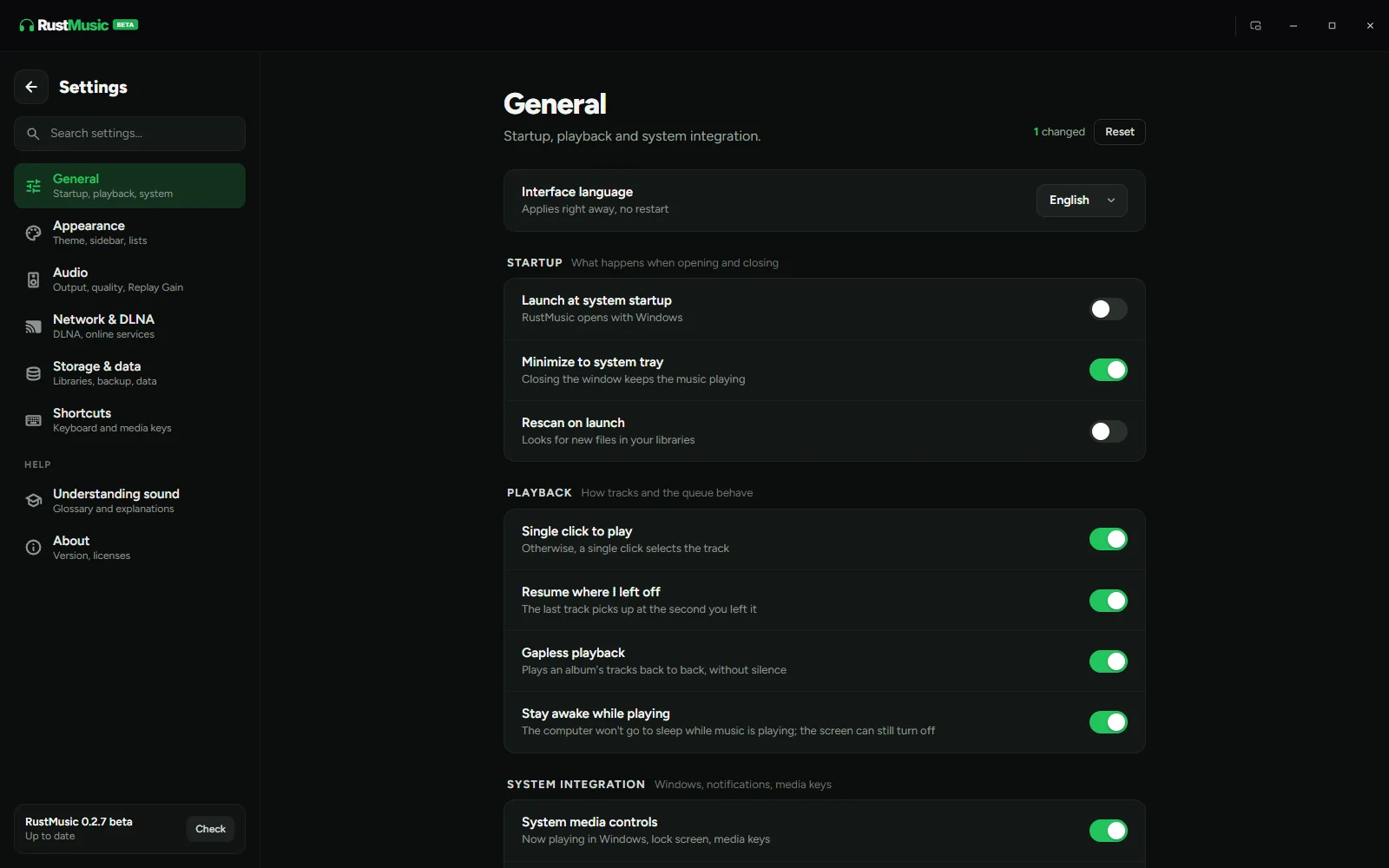
- Launch at system startup, and minimize to system tray.
- Rescan on launch, and single click to play.
- “Play on startup” (Startup group, off by default): the last track starts playing on its own when RustMusic opens.
- Resume where I left off (on by default): the last track picks up at the exact second at launch, and the home page’s “Resume” button follows this setting. Gapless playback.
- “Count a track as played”: after 1 minute or halfway (the default), or at 25, 50, 75, 80 or 90% of the track. This threshold drives the play count, “most played” and the plays reported back to your servers; Last.fm and ListenBrainz keep their own rule.
- Stay awake while playing, system media controls (keyboard media keys) and a notification for each track.
- System integration: sleep timer button, “What’s new button” (the megaphone in the top bar) and light / dark theme button, each of which can be hidden.
- Interface language: French, English, Spanish, German or Italian. On the first launch of a new installation, RustMusic uses the system language, or English otherwise; an updated installation keeps its language.
At launch, the window comes back at its size and position, maximized or full screen: these are saved as they change, not only when you quit.
Appearance
- System, Light or Dark theme, and Normal or High contrast. The day/night button in the top bar also switches the theme; its choice is remembered after a restart.
- Accent color: ten ready-made shades or a custom color. The logo, buttons, selections, links and every window follow it.
- Library navigation: in the sidebar, as tabs at the top, or both.
- Sidebar: pinned albums, artists and playlists, Liked tracks and Recently played to show or hide; favorite button, “File” and “Folder” buttons.
- Mini player: vertical or horizontal volume bubble.
- Window button style and position (left or right).
- Expert options: Auto, Full or Light visual effects, render mode and DMA-BUF (Linux) if you have display issues. Auto lightens effects with software rendering, in a virtual machine or on a modest machine, and shows the reason under the setting. After a render change, “Restart now” relaunches RustMusic.
Network & DLNA
- “Network players” (beta): “Play on a network player” adds your UPnP/DLNA players to the output menu, “Play on an AirPlay device (v1)” adds your AirPlay devices. Both are off by default: without them, no device is searched for.
- “DLNA server”: “Share on the network”, “Server name” and “HTTP port” (8200 by default).
- “Online services”: artist portrait downloads from Deezer when you open an artist page.
Each feature is covered in detail on the “Network and DLNA” page of this documentation.
Online listening
- “Podcasts” (beta): “Enable podcasts”, “Episode playback” (Instant or Deferred), “Default playback speed”, “Check for new episodes”, “Directory country”, “Played episodes” (keep or delete), “Subscriptions (OPML)”, the space taken by “Downloads” and “Clear listening history”.
- “Radio” (beta): “Turn on radio” and “Clear history”. The country for the most popular stations is chosen on the Radio page.
- “ListenBrainz” and “Last.fm”: sending your listens to these two services. See below.
- Podcasts and radio are off by default: without them, no directory or feed is contacted. Each group details what goes over the network.
The details are on the “Radio” and “Podcasts” pages of this documentation.
ListenBrainz
ListenBrainz is a free and open service that keeps the history of what you listen to and builds statistics from it. RustMusic can send your listens to it, profile by profile.
- 1
Get your token
In Settings → Online listening, “ListenBrainz” group, the “Find my token” link opens listenbrainz.org/settings/, where your account’s user token is.
- 2
Paste it
Into the “User token” field, then click “Connect”. “Connected as …” appears, with the number of listens waiting to be sent and “See my profile”.
- A track counts once it has been played halfway, or for 4 minutes if it is long. What is sent: artist, title, album, duration and time, never your files.
- “Announce the current track” (on by default) shows the track that starts on your profile.
- Offline, listens wait and are sent later.
- Neither podcasts nor radio are sent.
- “Disconnect” unlinks the account from the profile. A first click warns you, showing any listens still waiting, which would never be sent; a second click confirms.
Last.fm
Last.fm is the most widely used listening-tracking service. RustMusic sends your listens to it, profile by profile, alongside ListenBrainz if you like.
- 1
Click “Connect Last.fm”
In Settings → Online listening, “Last.fm” group. RustMusic opens the Last.fm authorization page in your browser.
- 2
Authorize RustMusic
Sign in to Last.fm if needed, then click “Allow”. Your password never goes through RustMusic. Stay on the settings page meanwhile: “Reopen the page” reopens the authorization if you closed it.
- 3
You’re linked
RustMusic connects on its own. “Connected as …” appears, with the number of listens waiting to be sent and “See my profile”.
- Same rules as ListenBrainz: a track counts once played halfway or after 4 minutes (and if it lasts more than 30 seconds); “Announce the current track” is on by default; offline, listens are sent later; neither podcasts nor radio.
- “Use my own API key” lets you link Last.fm with your own key: create it on last.fm (name: RustMusic), paste the API key and the shared secret, then “Connect Last.fm”. A build of RustMusic without a built-in key always asks for yours.
- “Disconnect” asks for a second click to confirm, and warns you if listens are still waiting. ListenBrainz is left untouched.
Remote
- “Enable the remote” (beta, off by default): without it, no amplifier is contacted.
- “Controlled amplifier” lists the Onkyo, Pioneer, Integra, Denon, Marantz and Yamaha amplifiers found on the network: “Control” picks one, “Stop controlling” releases it, “Search” runs the search again.
The remote’s panel is described on the “Amplifier remote” page.
Storage and data
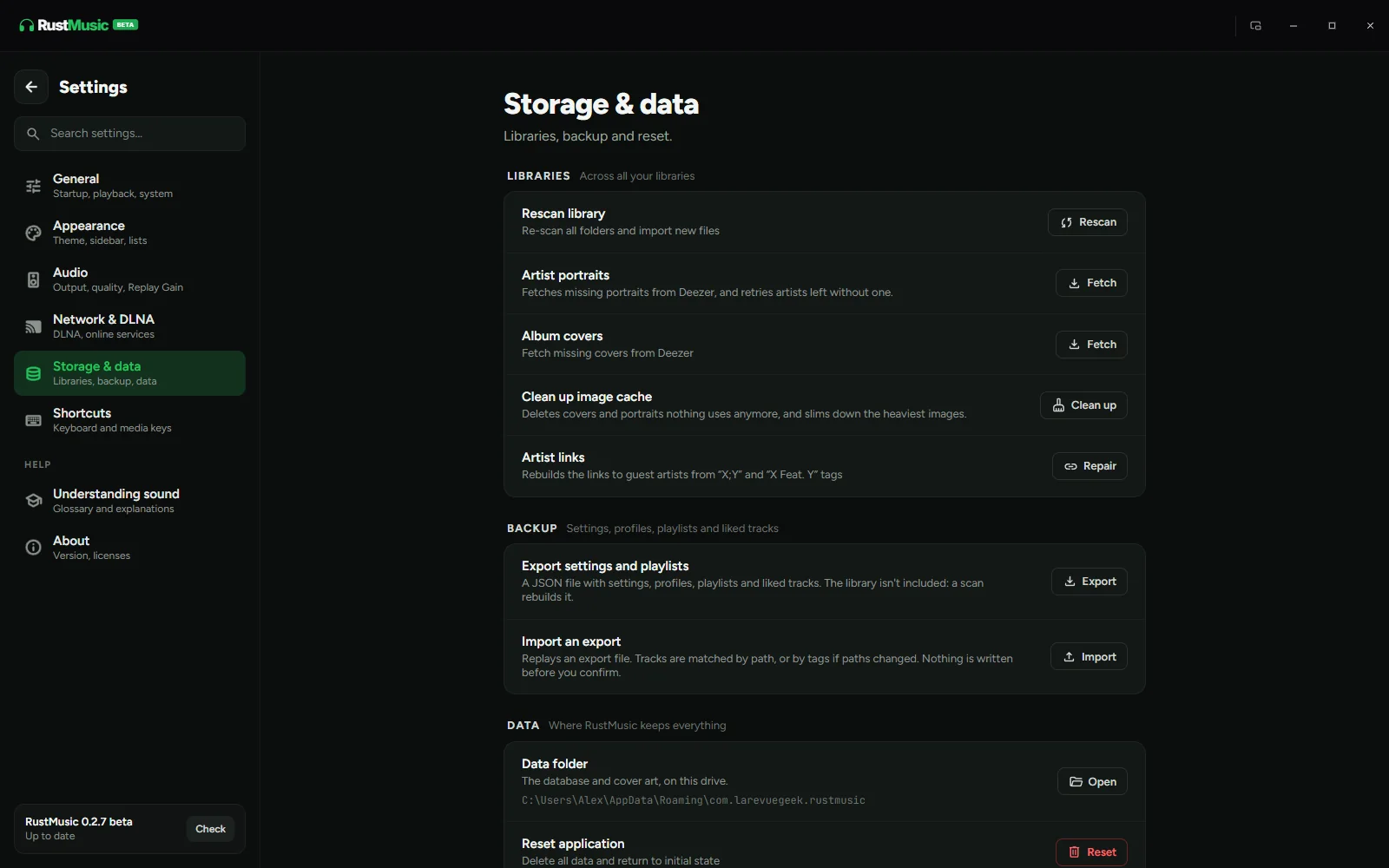
- Rescan the library, fetch missing artist portraits and album covers, clean up the image cache.
- “Artist links” → “Repair”: rebuilds the links to guest artists from “X;Y” or “X Feat. Y” tags.
- “Multiple artists”: “Check” splits names like “Chris Brown/Nicki Minaj” while keeping bands like “AC/DC” whole, “Check after each scan” does the same for new names, and “Review” reopens the summary to undo a split or decide on a name.
- “Servers” (beta): “Add a server” (Navidrome, Jellyfin, DLNA), and for each one the playback quality, “Server enabled”, “Sync”, “Folders…”, “Pin its playlists” and “Remove”. “Duplicate result” chooses the version opened first in “All sources”. Details on the “Servers and sources” page.
- “Export settings and playlists” creates a backup file (settings, profiles, playlists, liked tracks); “Import an export” restores it.
- “Data folder” opens the folder where RustMusic keeps its database and covers.
- “Reset application” erases all RustMusic data (never your music files); type DELETE to confirm.
Keyboard shortcuts
| Shortcut | Action |
|---|---|
| Space | Play / pause |
| → / ← | Forward / back 10 seconds |
| Ctrl + → / Ctrl + ← | Next / previous track |
| ↑ / ↓ | Volume up / down |
| M | Mute / unmute |
| Ctrl + Shift + M | Toggle mini player |
| Ctrl + K or Ctrl + F | Search |
| Shift + click | Extend a selection |
| Esc | Close a window |
On Mac, Ctrl is replaced by ⌘. Shortcuts are ignored while typing in a field, and keyboard media keys work when system media controls are turned on.
All these shortcuts can be customized in Settings → Shortcuts: click the keys, then type the new combination. A combination already in use is rejected, with the action that uses it. Each shortcut can be reset on its own, or all at once.
About and updates
The About page shows the installed version and the “Check for updates” button. The version card at the bottom of the settings column also offers “Check”, then “Install” when a new version is available.
Further reading
Question not answered?
Open an issue on GitHub: every report helps improve RustMusic and this documentation.