Music servers and sources
Your music hosted on Navidrome, Jellyfin, another Subsonic server or a NAS’s DLNA server becomes a RustMusic source, alongside your folders: libraries, playlists, liked tracks and history, with offline listening.
Up to date for version 0.4.3
Documentation
Supported servers
| Type | Examples | Connection |
|---|---|---|
| Subsonic · Navidrome | Navidrome, Gonic, Airsonic…: any Subsonic-compatible server | Username and password, or API key |
| Jellyfin | Jellyfin’s music libraries | Username and password, or username and API key |
| DLNA | MiniDLNA, a NAS media server | No account: found on the local network, or by its address |
Beta feature. Your password is never stored: RustMusic only keeps a fingerprint (Subsonic), the session token Jellyfin hands out, or the API key.
Adding a server
- 1
Open Settings → Storage & data
In the “Servers” group, click “Add a server”. The same button sits at the bottom of the Source menu in the sidebar.
- 2
Choose the type
“Subsonic · Navidrome”, “Jellyfin” or “DLNA”.
- 3
Sign in
Enter the “Server address”, your “Username” and your “Password”, then click “Connect”. “Use an API key” replaces the password with a key created on the server. For a DLNA server, “Search” finds it on the network; otherwise, enter its address.
- 4
Choose the libraries
Give the server a name and tick the “Libraries to add” (for DLNA, the “Folders to add”). Each one becomes a RustMusic library, marked with the cloud icon. Click “Add”.
The server’s catalog (tracks, albums, artists, covers) is then synced, like a scan: later syncs only rewrite what has changed.
A DLNA server in Docker or on another network doesn’t announce itself: enter its address, for example http://127.0.0.1:8200.
Switching source
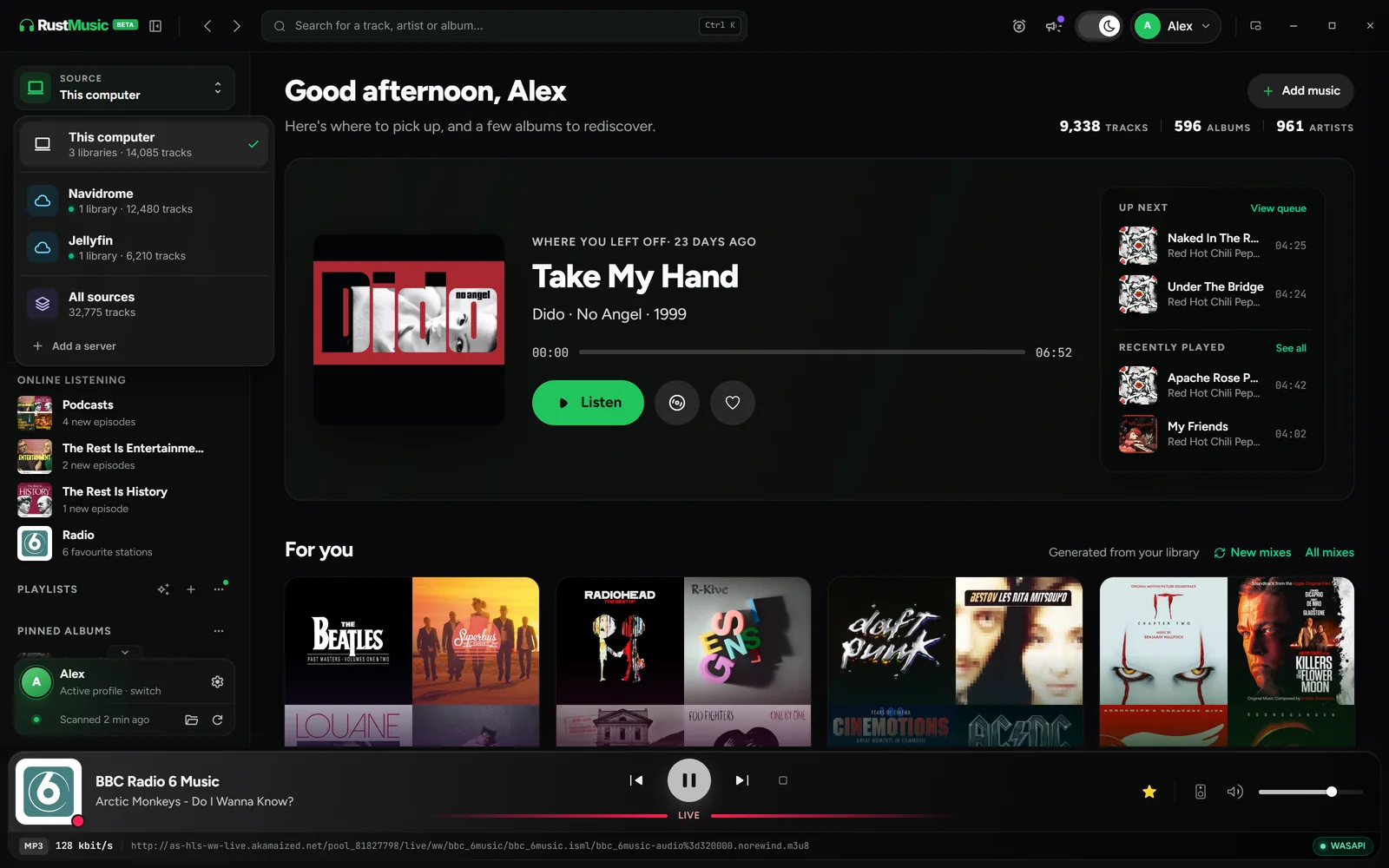
As soon as a server is added, a “Source” button appears at the top of the sidebar. It offers “This computer”, each server, and “All sources”. Without a server, it doesn’t appear and nothing changes.
- Each source has its own libraries, playlists, liked tracks, history, search and home page.
- Switching source doesn’t stop playback.
- “All sources”: an album that is both local and on a server only appears once. A disk icon and a cloud icon let you play or open either version.
The version opened first is set in Settings → Storage & data → Servers, on the “Duplicate result” line: “Local version” (the default) or “Server version”.
Playback and quality
The track plays as it arrives: playback starts right away, seeking stays fast and the next track is prepared in advance. The most recently played tracks are kept in a cache.
Each Subsonic or Jellyfin server has its own “Playback quality”:
| Quality | What you get |
|---|---|
| Original file | The file as it is: FLAC, hi-res, DSD included, and bit-perfect playback is still possible |
| MP3 320, 192 or 128 kbps | The server compresses the track: lighter for a slow connection |
If a server is unreachable or turned off, its tracks are skipped when moving to the next one. A DLNA server whose address has changed is found again on the network automatically.
Keep offline
Right-click (or use the “…” menu on) a server track, album, artist, genre or playlist, then “Keep offline”: those tracks are downloaded and stay playable with the server switched off. A cloud marked “Available offline” flags them. “Stop keeping offline” removes them.
In Settings → Storage & data, the server’s card shows “Offline: n tracks” and the space used; “Remove all” frees everything.
What goes back to the server
- Likes, ratings, plays and the track now playing are sent back to the server (Subsonic; favorites, plays and now playing for Jellyfin). If the server is unreachable, they are sent later.
- The server’s playlists are imported and can be edited both ways. When you create a playlist in a server source, “Where to create it” offers the server or “RustMusic” only; the Playlists page sorts them into “From the server” and “In RustMusic”.
- “Pin its playlists” shows them in the sidebar, server by server. Navidrome also imports album .m3u files: leave this setting off if there are many.
- When the server provides a track’s lyrics, they take priority over the online lookup.
- A compilation with no “album artist” tag, which a server splits into one album per artist, is brought back together as a single “Various Artists” album, as with your folders. Two different albums with the same title stay separate.
Managing or removing a server
In Settings → Storage & data, each server has its own card: connection status, “Server enabled”, libraries and last sync date. “Sync” runs the sync again, “Folders…” adds more of the server’s folders as libraries.
“Remove” erases from RustMusic the server’s catalog, its traces in playlists, liked tracks, recents and the queue, its current playback and its cache. You must type DELETE to confirm. Nothing is deleted on the server: you can add it again.
Further reading
Question not answered?
Open an issue on GitHub: every report helps improve RustMusic and this documentation.